“Has this been tested?”
A finished card does not show which scenarios were checked.
Built for lean teams. With room to grow.
If tests live in spreadsheets or your team’s memory, start organizing project quality. Bring together what needs to work, the tests performed and the problems found, so your team can decide what to do next with more clarity.
30 free days, no card. One account for TestMaster, PlanMaster and BugMaster.
Define what needs to work
Organized requirements and acceptance criteria.
Turn criteria into tests
AI-assisted drafts, reviewed by your team.
Run tests and record results
Steps, environment and evidence in context.
Track what needs fixing
Bugs linked to tests, with owners on the board.
A path to follow, even without a dedicated QA team.
If your team uses spreadsheets, cards and conversations to stay organized, these situations may feel familiar.
A finished card does not show which scenarios were checked.
Results and evidence are scattered across spreadsheets and conversations.
Without linked requirements and results, the team has to reconstruct the testing context.
PlanMaster organizes work. TestMaster shows coverage and recorded results. Together, they help your team decide where to act.
Activities, owners, priorities and progress together in PlanMaster.
Find pending work and see who owns the next step.
Cases linked to acceptance criteria, with results recorded in test runs.
See what passed, what failed and what has not been executed.
Uncovered criteria and outstanding bugs guide the next quality discussion.
Use the records to assess a delivery and decide what to check or fix.
Coverage means an active case is linked to a criterion. Passing depends on the execution result. Both help you assess project quality.
Four steps, and the trail survives all of them.
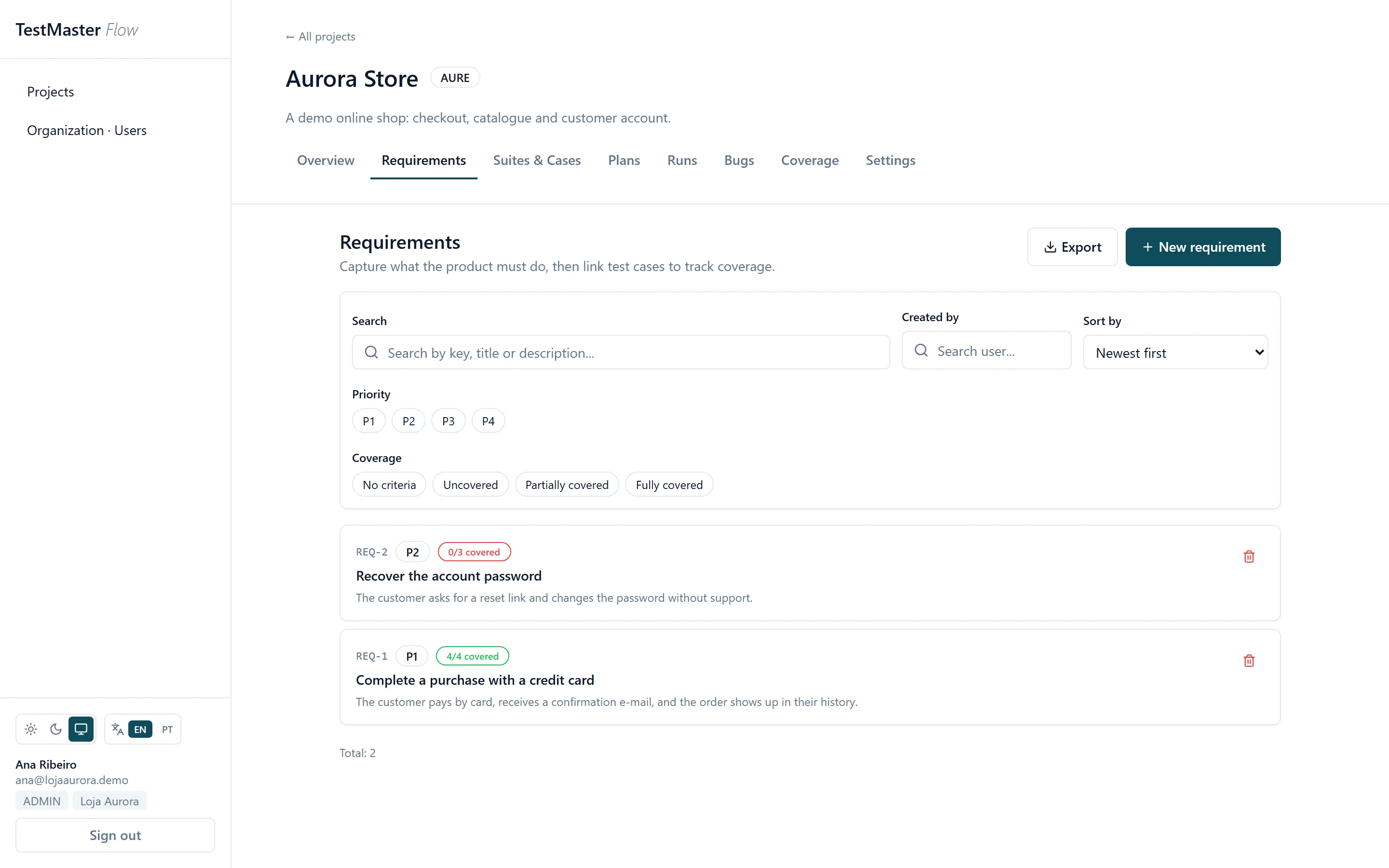
Each criterion becomes a folder in the suite with one click. The link between criterion and case survives an edit to the text, so fixing a typo does not undo your coverage.
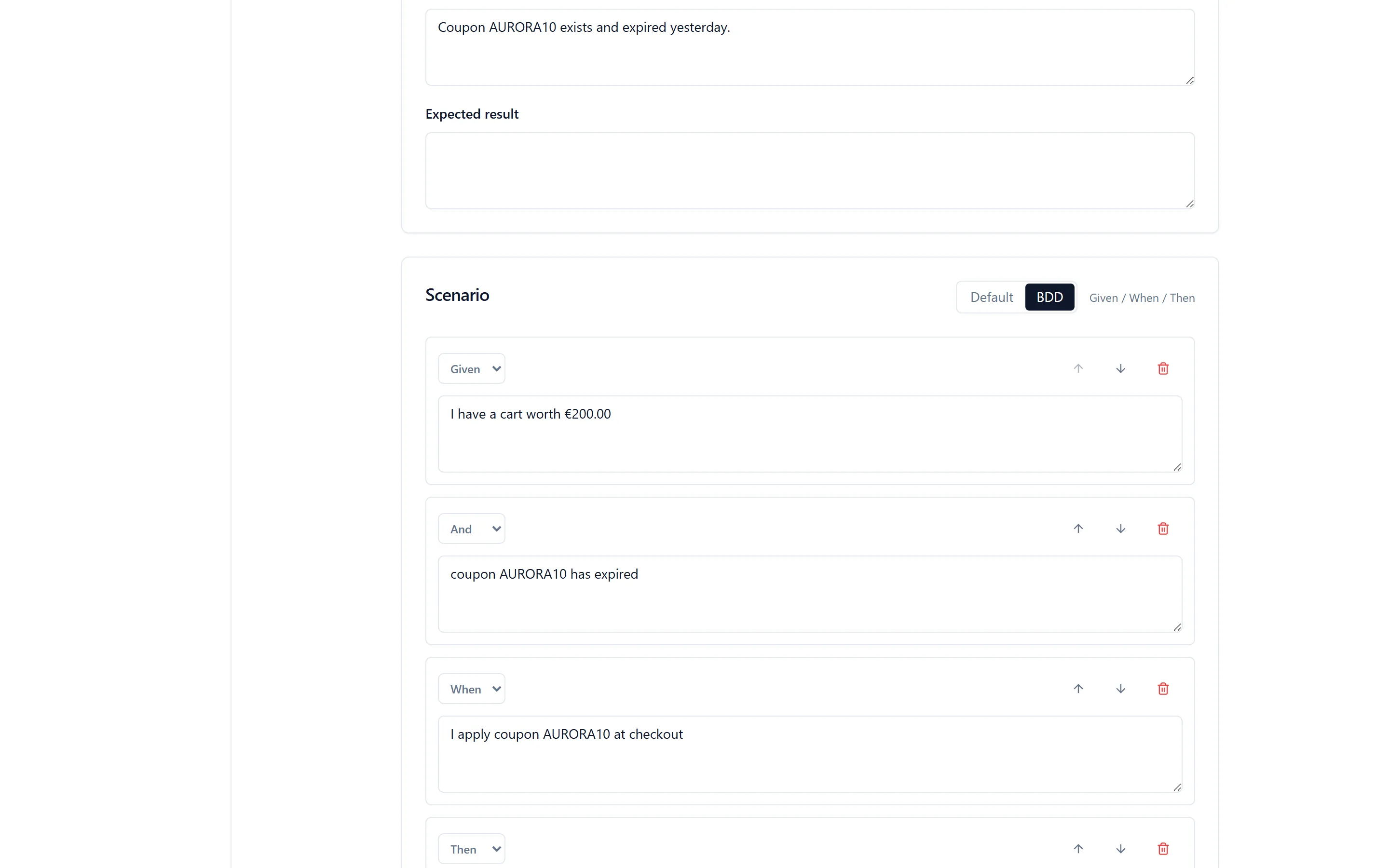
In BDD each step carries its own Given/When/Then, preconditions become the Background, and the expected result only appears on steps that assert something. Converting between the two styles loses no text.
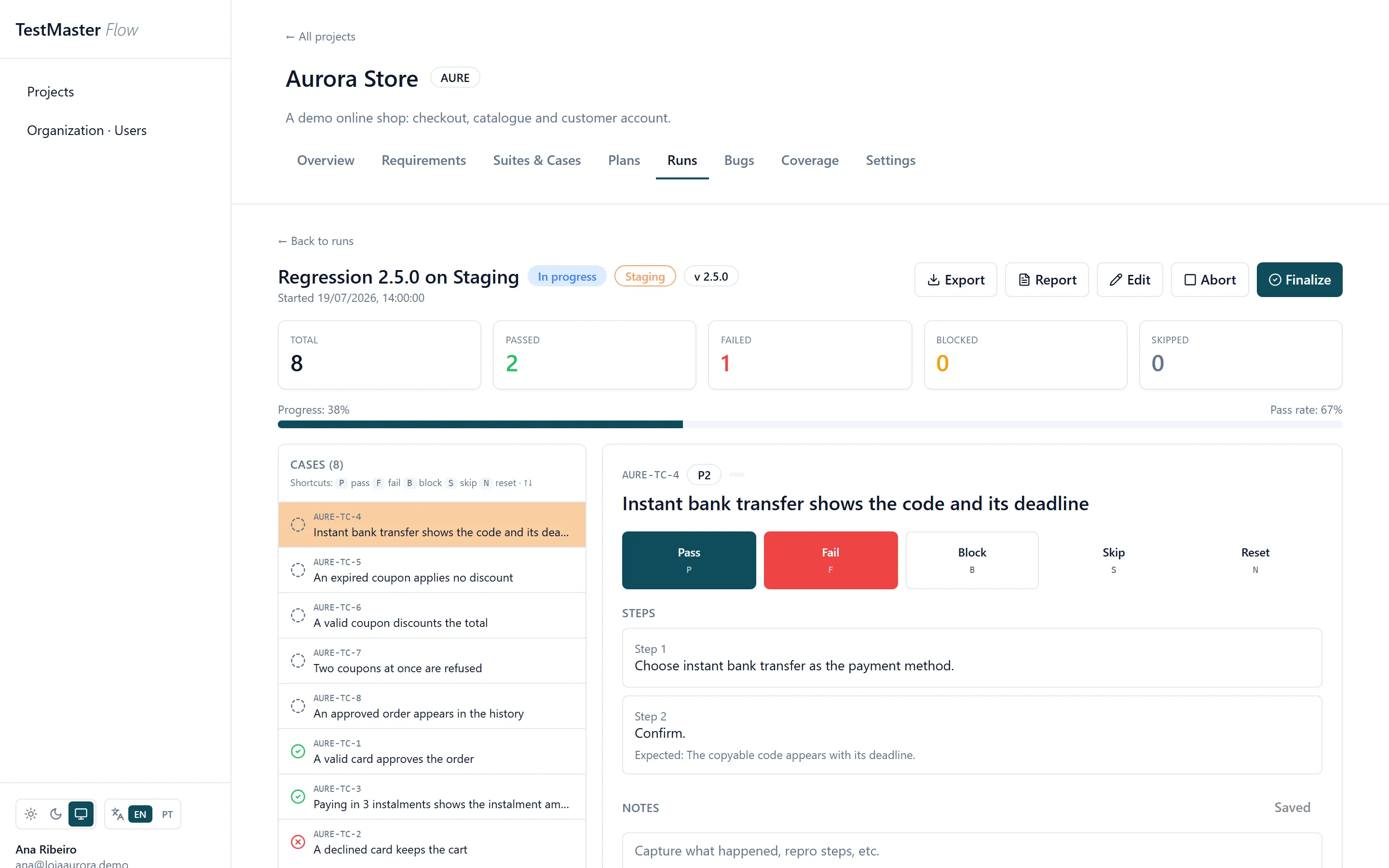
From a plan or ad hoc. The runner is driven from the keyboard (P, F, B, S, N) and records who ran it, when, and against which environment.
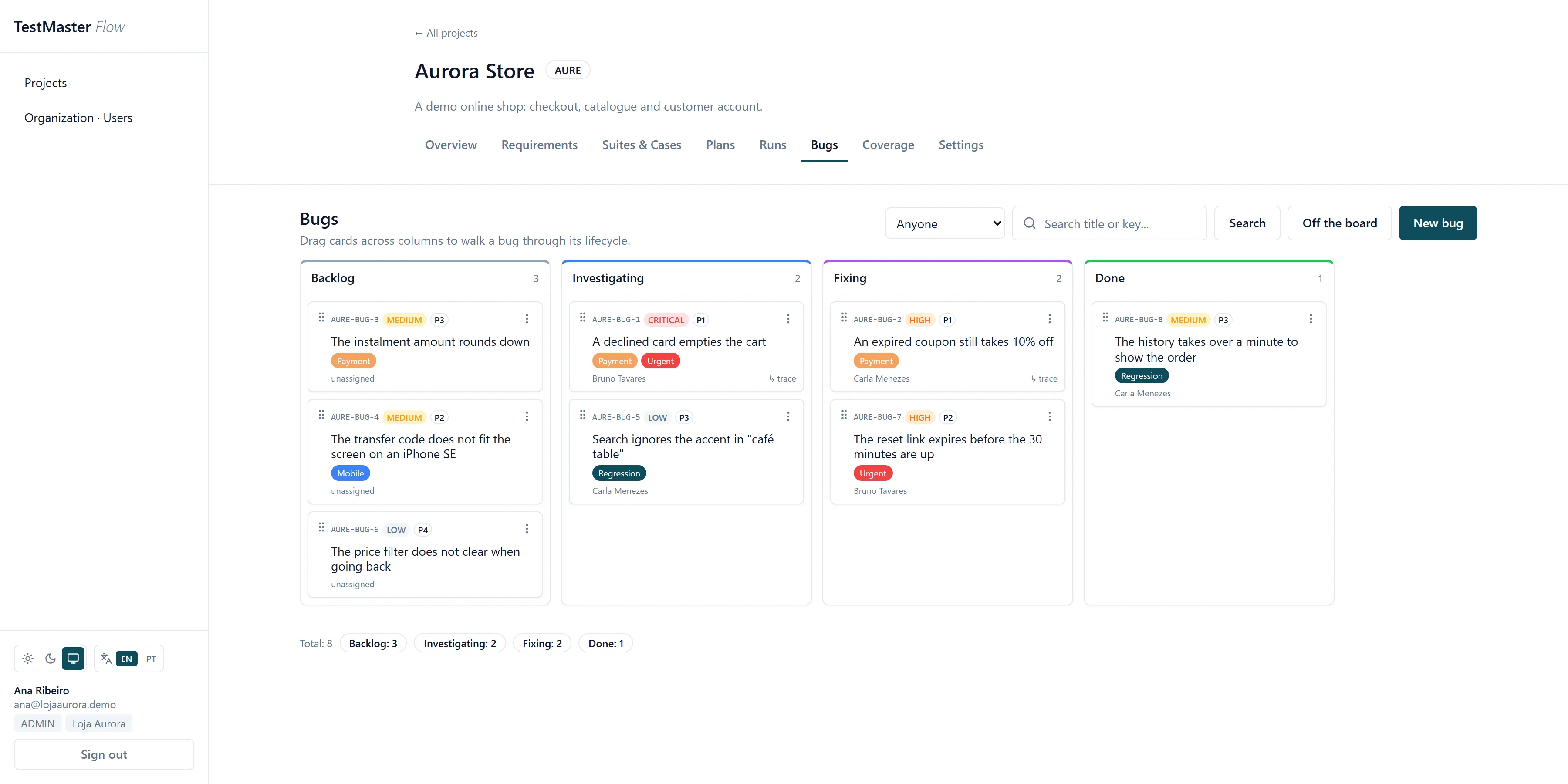
Title, steps to reproduce, environment and version arrive filled in from the run. The bug lands on the Kanban carrying its origin with it.
Three things a still image cannot show.
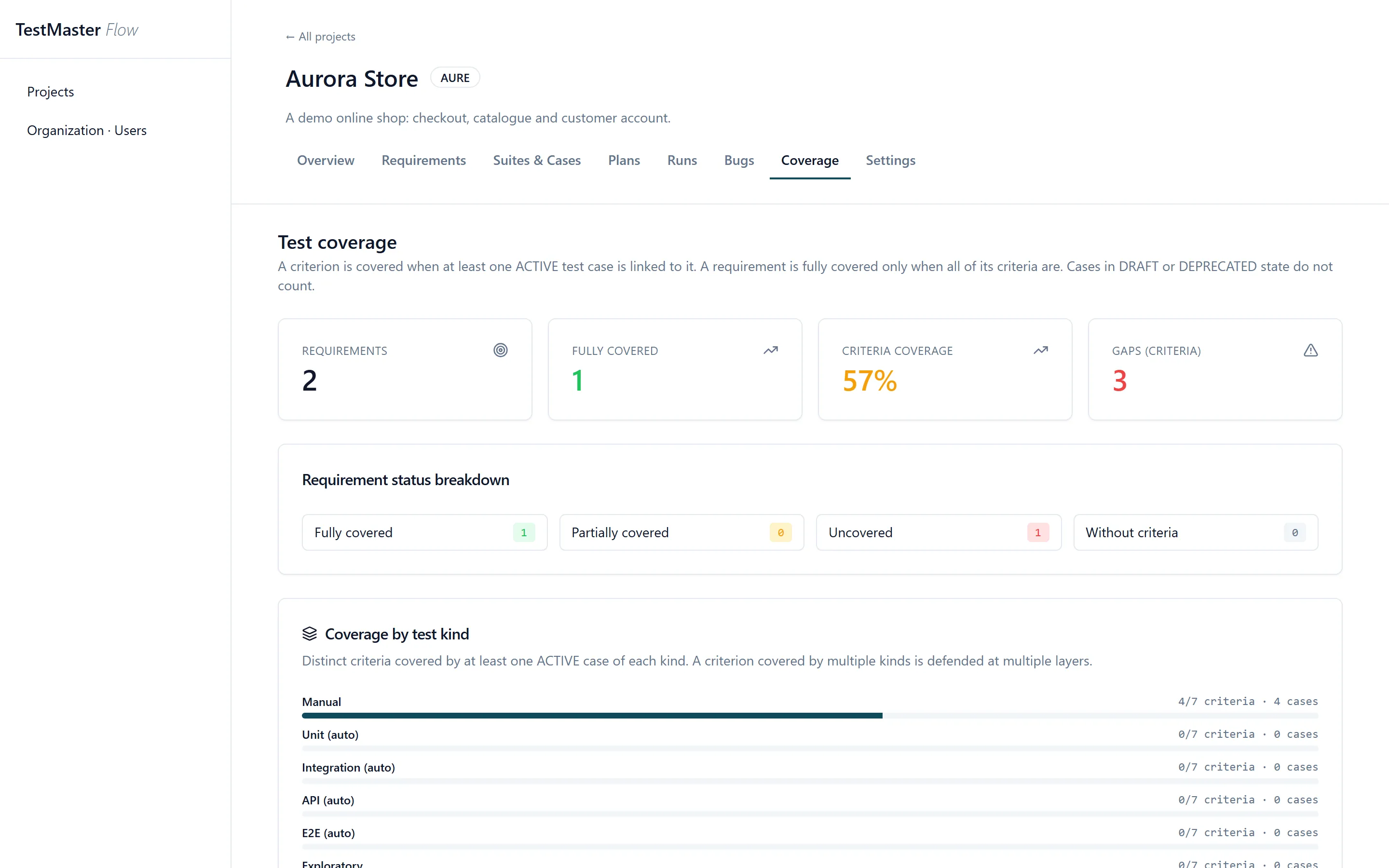
Acceptance criterion by acceptance criterion: which ones have an active case, how many are left as gaps, and how much of the total is covered. A requirement only counts as fully covered when all of its criteria are, and cases in draft or obsolete do not count.
The same screen splits coverage by kind of test: manual, unit, integration, API, E2E and exploratory. A criterion defended only by a manual test is a different risk from one defended by automated E2E, and here that difference shows instead of disappearing into a single number.
Draft requirements, cases and bugs with a screenshot or log attached. Choose your personal Gemini or OpenAI connection; the provider bills usage to your account. Without a key, build the prompt, use an external AI and import the answer back.
A zip with a faithful project.json, one CSV per entity and the attachments alongside, plus a README explaining the layout. Tried it and did not like it? Take everything. The way out is part of the product.
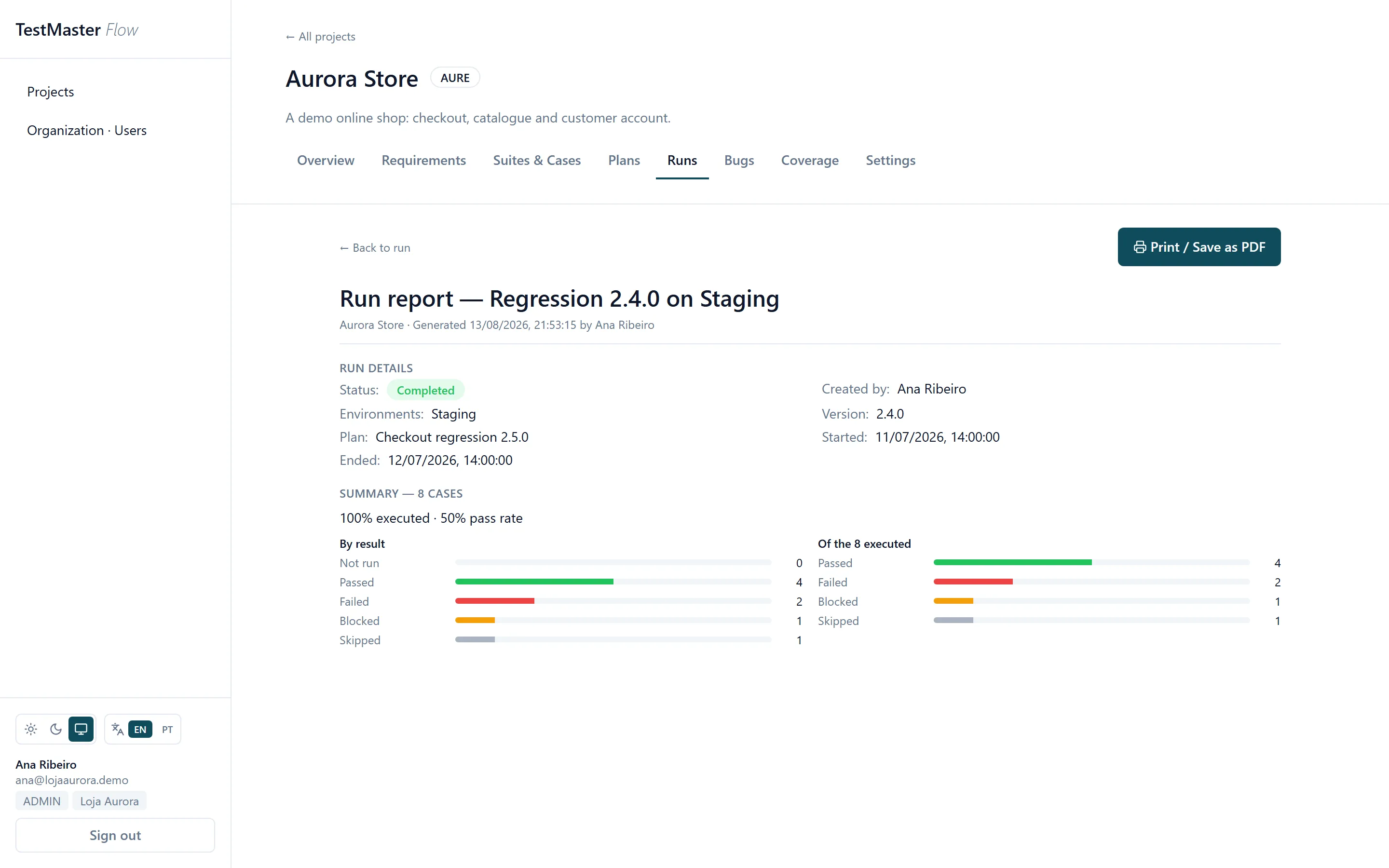
Two separate charts, because progress and pass rate do not share a denominator. A run still open is marked as open.
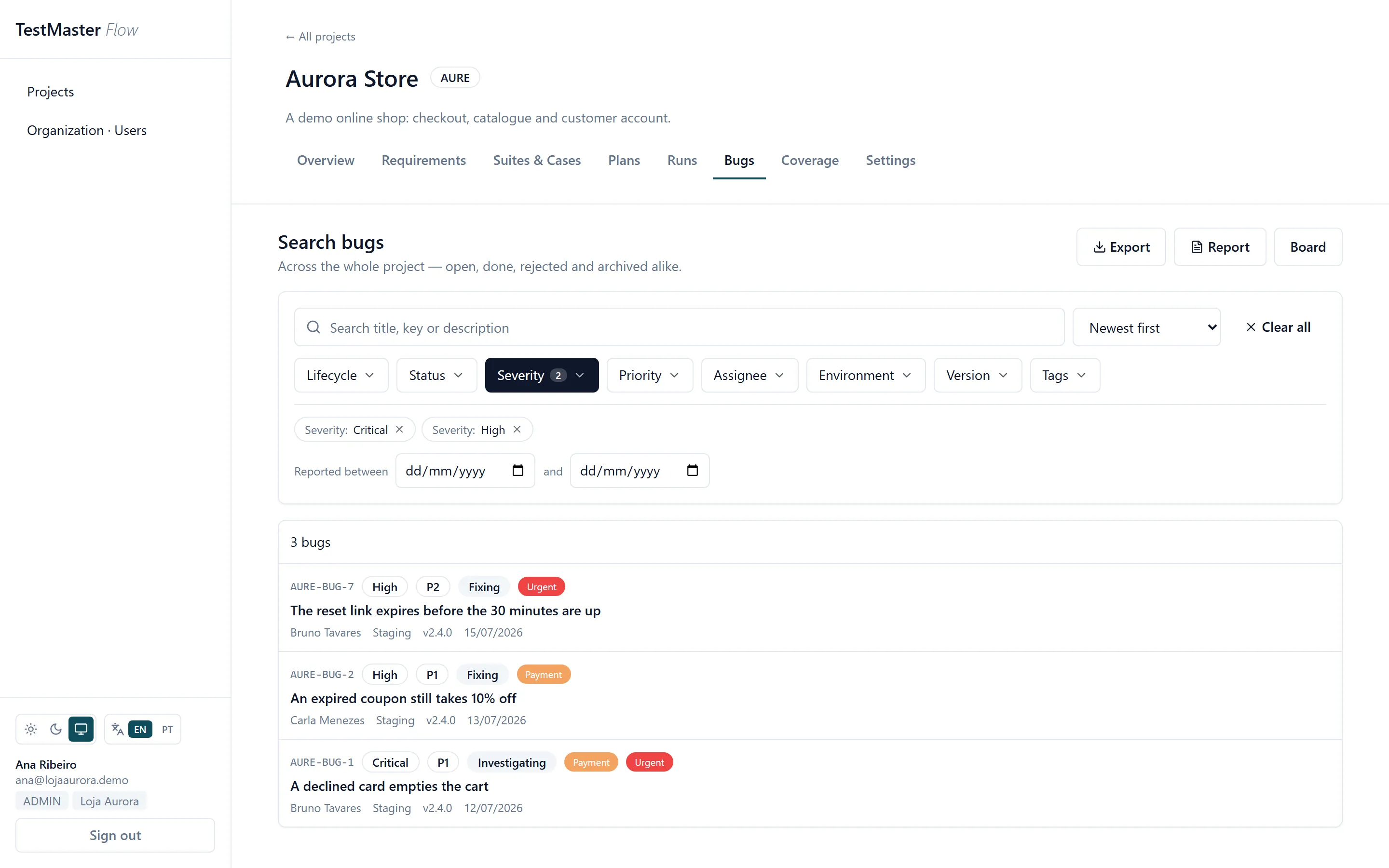
Severity, priority, assignee, environment, version, tag, column and state, each accepting several values at once. The filters live in the URL, so the link reproduces the search.
It opens formatted, with the filters spelled out. And CSV and JSON carry exactly what the screen has filtered.
Every project defines its own columns, with colour and order. Dragging saves immediately.
Sub-suites with drag and drop. Selecting a suite also shows the cases of its children.
AI and MCP to reduce manual work
Ask your assistant to turn criteria into cases, organize a plan and record the results your team provides. When a test fails, create a bug linked to the result and requirement to help developers investigate.
Product owners
Connected requirements, criteria and documentation to guide refinement and test preparation.
Less duplicate entry between product definition and planning.
Developers
Activities linked to their requirement, epic and sprint, so the team can find the purpose behind the work.
Fewer screen changes to record and track the work ahead.
QA engineers
Connected cases, plan, results and bug. The failure keeps its reference to the test and requirement.
Less manual work assembling context to investigate and fix failures.
The API helps bring information from other systems and keep project data up to date, reducing duplicate entry across tools.
For teams moving beyond spreadsheets and cards, TestMaster + PlanMaster connects the work to be done with delivery validation. See the benefit compared with each alternative.
| Tool | What you get | Why choose TestMaster + PlanMaster |
|---|---|---|
| Spreadsheets | Flexible data organization. | Structured tests and links, without building the process in cells. |
| Trello | Boards to organize tasks. | Also see what was tested and what failed. |
| Jira | Development planning. | Test management is already part of the joint offering. |
| Jira + Xray | Planning, testing and traceability. | One joint offering, without depending on Jira and an Xray license. |
| TestRail | Test management and reports. | Development planning included with PlanMaster. |
| TestLink | Open-source test cases, plans and runs. | Bugs, requirements and planning in the same project, without integrating another tool. |
| Bugzilla | Open-source bug tracking. | Cases, runs and coverage linked to the bug, not just the defect record. |
| TestMaster + PlanMaster | Connected requirements, work, tests and bugs. | Follow activities through to test results in the same project. |
Start with TestMaster. Add PlanMaster to your workflow when you want to connect development planning too.
Workflow comparison reviewed October 11, 2026. Spreadsheets, Trello and Jira are considered without added test management apps; Jira + Xray includes that app. Features and terms vary by plan, edition and integrations. Xray and TestRail also provide coverage and traceability. The Jira + Xray column refers to Xray Test Management, an app for Jira. TestLink is considered in its open-source edition, without integrations; Bugzilla is a bug tracker and does not offer test management. Visibility in our solution depends on the records and links maintained by your team.
Official sources: features and licensing.TrelloTrello plansTrello MCPJira and test managementXray featuresXray licensingTestRail features and plansTestRail and JiraTestLink documentationBugzilla documentation
Choose something your team knows, such as login or registration. You can start without a dedicated QA specialist and grow your process gradually.
Write the rule and how to tell whether it works.
Create activities, set priorities and assign owners.
Record the steps and expected results.
Execute with your tools and record results and failures.
Check pending work and agree on next steps.
Add epics, sprints and advanced features as your team needs them. Your first step can be one requirement, one activity and one test.
Start with a small set of information so you can check the organization before bringing more data across.
Pick one feature and collect its existing notes, tasks and tests.
Identify requirements, activities, test cases and bugs. Review titles, owners and relationships.
Use the interface or provide the data to your MCP-connected assistant. Check the records and links before expanding.
For larger volumes, the API supports building integrations from available data. Formats, fields and links need mapping; this workflow is not an automatic importer for Trello or arbitrary spreadsheets.
Choose one important feature. Organize its tests and results so your team can see what passed, what failed and what remains to be checked.
Start with 30 free days on the Team plan, no card needed. One account opens TestMaster, PlanMaster and BugMaster. Then pick a plan and pay monthly by card or Pix.
To start with a small team.
R$ 79/month
The whole team, with testing and planning together.
R$ 150/month
Several teams and products in one account.
R$ 390/month
Monthly payment by card or Pix. No lock-in. Every delivered BugMaster session adds 1 month of TestMaster and PlanMaster. Discover BugMaster